Badge Printing Guide
OrganizersDownload and print attendee badges with QR codes for event check-in
Quick Start
Go to Dashboard → Events → Your Event → Registrations and click "Download Badges". Choose PDF for ready-to-print badges, ZIP for individual QR codes, or CSV for custom designs.
Where to find it
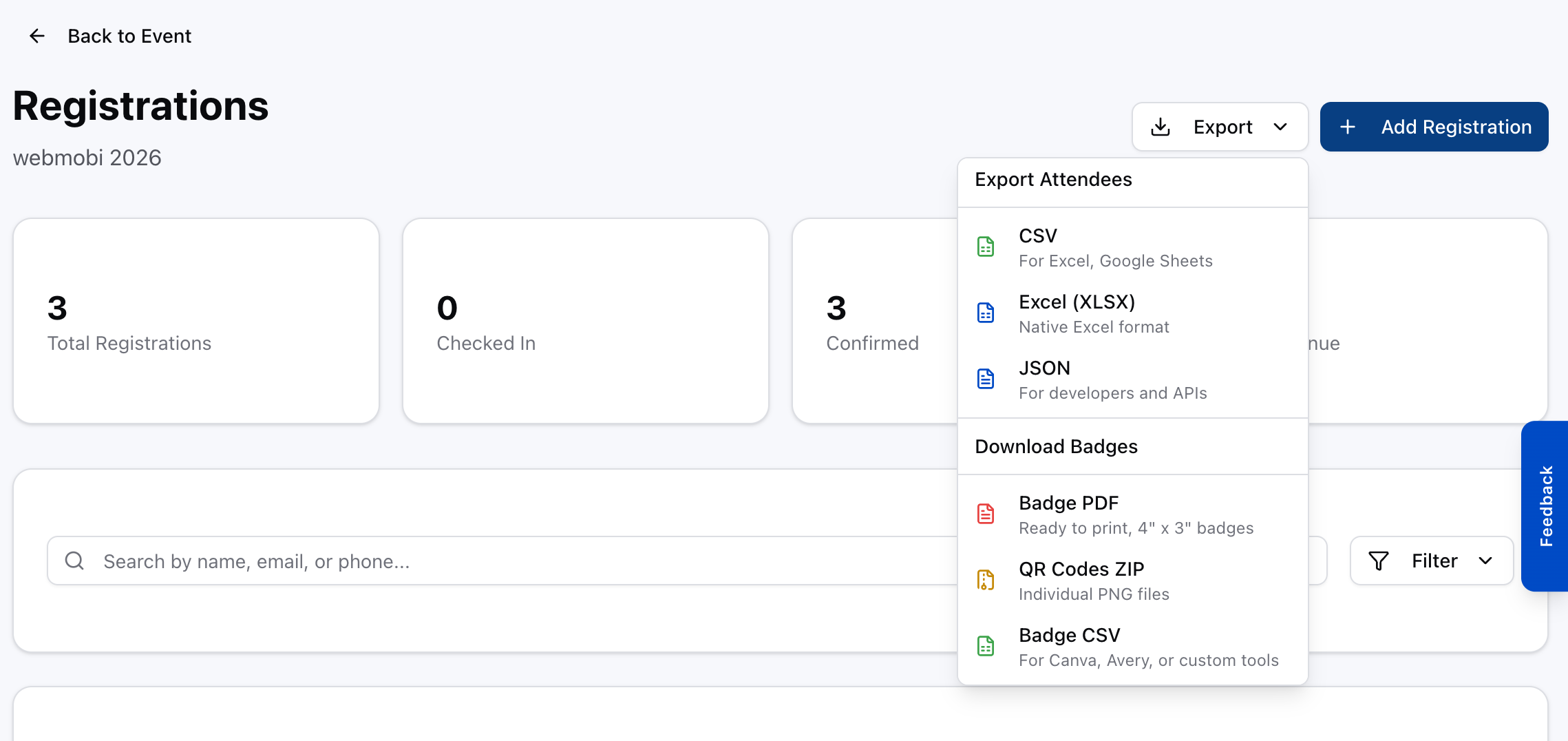
Open Dashboard → your event → Registrations and click the Export button in the top right. Badge downloads are the second group in that menu, under Download Badges.
Scan one before you print the rest
A badge is only scannable if a QR code was generated for that registration. If one is missing, the download still succeeds and still produces a file — the badge simply resolves to "Attendee not found" at the door. Nothing warns you in between.
So download, then scan one badge on the Check-In page and confirm the attendee's name comes back. It takes a few seconds and it is the only thing that proves the badges work.
Download Formats
Badge PDF
Ready to Print
Multi-page PDF with one badge per page. Standard 4" x 3" size that fits common badge holders. Each badge includes attendee name, company, ticket type, QR code, and registration number.
Best for: Quick printing on any office printer. No design software needed.
Steps
- 1Go to Dashboard > Events > Your Event > Registrations
- 2Click the "Export" button, then Badge PDF under Download Badges
- 3Wait for generation (a few seconds for most events)
- 4Open the PDF and print at "Actual Size" (no scaling)
- 5Cut along badge borders and insert into badge holders
QR Codes ZIP
Individual PNGs
ZIP archive containing individual QR code PNG images (300x300px). Each file is named with the registration number and attendee name for easy identification.
Best for: Custom badge designs using Canva, InDesign, Photoshop, or other design tools.
Steps
- 1Go to Dashboard > Events > Your Event > Registrations
- 2Click the "Export" button, then QR Codes ZIP under Download Badges
- 3Extract the ZIP file
- 4Import individual QR images into your badge design template
- 5Each file is named: REG-XXXXXXXX_LastName_FirstName.png
Badge CSV
For External Tools
CSV spreadsheet with all attendee data and QR code image URLs. Compatible with Canva Print, Avery Design & Print, and professional badge printing services.
Best for: Mail merge with badge templates, professional printing vendors, or bulk badge production.
Steps
- 1Go to Dashboard > Events > Your Event > Registrations
- 2Click the "Export" button, then Badge CSV under Download Badges
- 3Open in Excel or Google Sheets to review data
- 4Import into your badge printing tool (Canva, Avery, etc.)
- 5The QR Code Image URL column links to a hosted QR code PNG for each attendee
CSV Columns
Printing Tips
Use Standard Badge Holders
Badge PDF is sized at 4" x 3" (standard horizontal badge). Works with holders from brands like Avery, SICURIX, and most conference suppliers.
Print at Actual Size
When printing the PDF, select "Actual Size" or "100%" in your print dialog. Do NOT select "Fit to Page" as this will shrink the QR codes and make them harder to scan.
Test Scan Before Printing All
Print one test badge first and scan it with the Check-In page to verify it works. Then print the rest.
Cut Precisely
Use a paper cutter or guillotine for clean edges. Each badge page has a light border to guide cutting.
Badge Layout
The PDF badge uses a standard 4" x 3" layout optimized for readability and scannability:
John Smith
Acme Corp
Product Manager
General Admission
Troubleshooting
QR code won't scan after printing
Make sure you printed at "Actual Size" (100%). Scaled-down QR codes lose resolution. Also ensure good contrast (black on white).
Download button is disabled
You need at least one confirmed registration. Pending or cancelled registrations are not included in badge downloads.
PDF takes too long to generate
For events with 800+ registrations, use the CSV format instead and import into a dedicated badge printing tool.
CSV doesn't open correctly in Excel
The CSV uses UTF-8 encoding with BOM. If special characters look wrong, try importing (Data > Import from CSV) instead of double-clicking.